PSAT Study Planner

Updated: 7 hours ago
What Is a PSAT Study Planner?
A PSAT study planner turns your test date, current level, and available study time into a week-by-week PSAT preparation schedule — so you're not stuck guessing what to study or when to start. It's useful for any student with an upcoming PSAT/NMSQT, PSAT 10, or PSAT 8/9 who wants a structured plan instead of an open-ended "study more" intention.
EduShaale's PSAT Study Planner is a free, browser-based version of this: answer a short set of questions about your test date, score goals, and schedule, and it builds a personalized plan — preparation phases, a weekly schedule, and practice-test checkpoints — without requiring an account.
It's a planning tool, not a scoring tool: it organizes your preparation time and does not predict or guarantee a PSAT score, and it is not affiliated with or endorsed by the College Board.
Meet the EduShaale PSAT Study Planner

Before you reach the quiz, the tool only asks for two things:
Test type — PSAT/NMSQT, PSAT 10, or PSAT 8/9, each with its own correct score range built in (NMSQT and PSAT 10: 320–1520; PSAT 8/9: 240–1440).
Test date — this drives every later calculation (weeks remaining, phase lengths, checkpoint placement), so use your actual confirmed date rather than a guess.
Selecting your test type and date and clicking Build My PSAT Plan does not generate your plan immediately — it opens a short 6-step diagnostic quiz. The actual week-by-week schedule only appears after you finish all six steps, covered step by step below.
No account, no login, no email required. Everything — your answers and the plan built from them — is processed entirely in your browser. One distinction worth getting right: your Error Log entries, Score Progress entries, and Weekly Checkpoint notes save locally in your browser between visits. The generated plan and your quiz answers do not — they exist only until you close the tab, unless you copy or download the plan first. More on that in Step 7 below.
How to Use the PSAT Study Planner: Step by Step
The planner is really a 3-part flow — enter your test details, answer a 6-step quiz, then get your plan — not the single click some other tools promise.
Step 1 & 2: Select your test type and enter your test date
Choose PSAT/NMSQT, PSAT 10, or PSAT 8/9, then enter the date of your actual test (validated against today's date, with a two-year cap). Picking the wrong test type isn't just cosmetic — it changes the score range used throughout the rest of the tool.
Step 3: Click "Build My PSAT Plan" to start the quiz
This opens a 6-step questionnaire with a step counter and progress bar — not your finished plan yet.
Step 4: Complete the 6-step quiz
4a. Score Goals

Report a current practice score if you have one (or choose "I haven't taken a practice test yet"), and optionally set a target score from six presets (900–1400) or a custom value.
4b. Preparation Level

Self-rate from five options, Just Starting through Nearly Test Ready. This weights how the tool divides your preparation phases.
4c. Study Schedule

Pick a weekly-hours band (six ranges, 1–2 hours up to 16+), which days of the week you can study, and a preferred session length (30, 45, 60, 90, or 120 minutes).
4d. Reading and Writing

Rate your R&W preparation on a 5-point scale, and optionally flag which of the four content domains need the most attention: Information and Ideas, Craft and Structure, Expression of Ideas, Standard English Conventions.
4e. Math

Same structure for Math: a 5-point rating plus optional weak areas across Algebra, Advanced Math, Problem-Solving and Data Analysis, and Geometry and Trigonometry.
4f. Practice Habits

Four quick questions: how many practice tests you've completed, how often you do PSAT-style practice questions, how often you review mistakes, and how comfortable you are under time pressure. The final step's button changes to Build My PSAT Plan — this is the click that actually generates your schedule.
Step 5: Review your plan

Your plan opens with a timeline summary (test type, date, weeks remaining), a Today's Priority card naming one specific next session, and KPI tiles for days remaining, weekly study time, and your target-score gap if you set one.

Below that, Preparation Phases lay out your plan across up to five stages — Foundation, Skill Building, Timed Practice, Practice Tests, Final Review — compressed to four or three phases if your test is close.
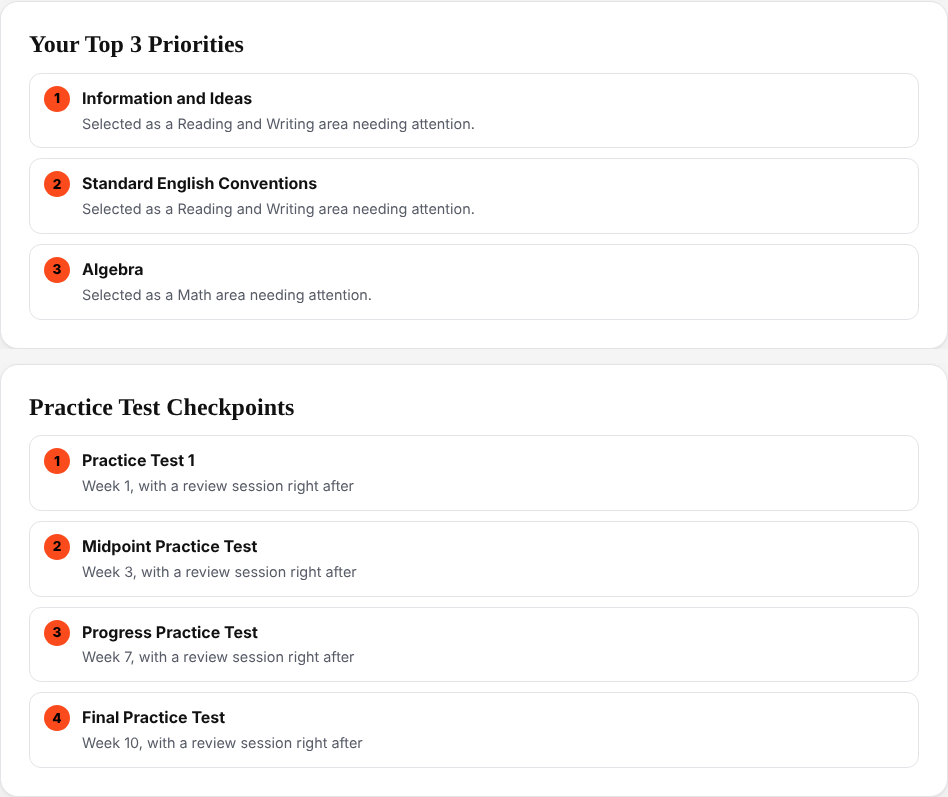
Your Top Priorities are drawn directly from the weak domains and practice-habit answers you gave, and Practice Test Checkpoints are placed automatically through your timeline, each followed by a review session.

The core of the plan is the Weekly Schedule — expandable week cards listing specific days, session lengths, topics, and objectives for each study day you selected.
Step 6: Use the Weekly Checkpoint, Error Log, and Score Progress sections

Below your schedule: a short weekly reflection prompt with a notes field, an optional Error Log for recording specific missed questions (topic, error type, why you missed it, the correct approach), and an optional Score Progress tracker for logging practice-test scores over time. These three are the only things the planner actually saves in your browser between visits.
Step 7: Save, copy, share, or download your plan

Copy My Plan and Share My Plan produce a short text summary. Download My PSAT Study Plan opens a print-ready version you can save as a PDF through your browser's print dialog. This is the step not to skip: because the generated plan itself isn't saved automatically, copying or downloading it is the only way to keep a copy once you close the tab.
Step 8: Adjust or reset
Adjust My Plan takes you back through the 6-step quiz to change an answer and regenerate. Reset Planner clears everything and returns you to the test type and date screen.
A Sample Run: One Student's PSAT/NMSQT Plan
Here's what a personalized PSAT study schedule actually looks like in practice, using the screenshots above as a worked, illustrative example — not a prediction of what any individual student will get.
A junior preparing for the PSAT/NMSQT enters a test date roughly ten weeks out, selects "Enter my score" with a current practice score of 1050 and a target of 1200, rates their preparation as "Some Preparation," picks a 6–8 hour weekly study band across Monday, Wednesday, and Saturday, flags Information and Ideas and Standard English Conventions as Reading and Writing weak spots and Algebra and Problem-Solving and Data Analysis in Math, and reports having completed one practice test so far.
The tool returns a 10-week, 5-phase plan with a 150-point score gap, a Week 1 "Today's Priority" of taking a baseline practice test, three prioritized weak-area topics, four practice-test checkpoints, and a full week-by-week schedule. Your own plan will look different — the schedule, priorities, and phases are built entirely from your own date and answers, not a fixed template.
How to Follow Your PSAT Study Plan
The planner builds the schedule; how well you stick to it is still up to you. A few habits make the biggest difference in most PSAT preparation:
Set a weekly routine you can actually keep. The planner uses your own stated availability, but a realistic, consistent schedule beats an ambitious one you abandon in week two.
Divide time between Reading and Writing and Math based on where your rated weaknesses are, not evenly by default.
Work on your identified weak areas first, using the Top Priorities list as a starting point.
Practice with PSAT-style questions regularly rather than in occasional long sessions.
Review every incorrect answer and note why you missed it — the planner's Error Log is built for exactly this.
Add timed practice so pacing isn't a surprise on test day.
Treat practice tests as checkpoints, not one-off events, and review them afterward using the Weekly Checkpoint prompts.
Adjust the schedule when you fall behind — use "Adjust My Plan" to regenerate rather than forcing the original timeline.
Use official College Board practice resources alongside the planner — EduShaale's tool organizes your preparation but doesn't replace actual PSAT-style practice material. College Board publishes its own PSAT/NMSQT study and practice resources worth reviewing alongside your plan.
How Early Should You Start Studying for the PSAT?
There's no single right answer, and the planner is built around that: it adjusts its own structure to however many weeks you actually have, rather than assuming every student needs the same runway.
8+ weeks remaining — a full plan across five phases: Foundation, Skill Building, Timed Practice, Practice Tests, and Final Review.
Under 8 weeks — a compressed plan across four phases.
Under 4 weeks — an accelerated three-phase plan, with the tool flagging "Accelerated Preparation Mode."
7 days or fewer — a final-week mode that skips new content entirely and lists specific review priorities instead.
In practice, how early you should start depends more on your current level, the size of the gap to your target score, and how much time you can realistically commit each week than on the calendar alone. A student starting from a strong baseline with a modest score goal needs less runway than one starting from scratch with a large target gap — the quiz's score-goals and preparation-level steps are what let the planner tell the difference.
PSAT Study Plans for PSAT/NMSQT, PSAT 10, and PSAT 8/9
The planner supports all three PSAT variants, each with its own built-in score range:
Test | Score range | Typically taken by |
PSAT/NMSQT | 320–1520 | Juniors (the version used for National Merit Scholarship Program entry) |
PSAT 10 | 320–1520 | Sophomores |
PSAT 8/9 | 240–1440 | 8th and 9th graders |
Selecting the right test type matters because it sets the score range used for your current and target scores throughout the plan — PSAT/NMSQT and PSAT 10 share a scale, while PSAT 8/9 uses a different one entirely. Beyond the score range, the planner builds your schedule the same way regardless of test type: from your own preparation level, weak areas, and available time, not a fixed template per test. If you're not sure which test you're registered for, check with your school or your registration confirmation rather than guessing — the wrong test type will show you the wrong score scale throughout.
Frequently Asked Questions
What is a PSAT Study Planner?
A tool that turns your test date, current level, score goals, and available time into a personalized week-by-week PSAT preparation schedule. EduShaale's version is a 6-step quiz that generates a schedule with preparation phases, practice-test checkpoints, and a prioritized focus list.
How do I create a PSAT study plan?
Select your test type and test date, then complete the 6-step quiz covering your score goals, preparation level, weekly schedule, Reading and Writing and Math self-ratings, and practice habits. Your plan appears immediately after the final step.
How does the EduShaale PSAT Study Planner work?
It combines your test date (for timing), your self-rated preparation level (for phase weighting), your weak domains (for prioritization), and your weekly availability (for the actual schedule) into one generated plan — all processed in your browser.
Can I create a PSAT study schedule based on my test date?
Yes — your test date is the first input and drives every date-based calculation: weeks remaining, phase lengths, and checkpoint placement.
Is the PSAT Study Planner free?
Yes, and it doesn't require an account.
When should I start studying for the PSAT?
There's no single right answer — it depends on your current level, your target, and how much time you can realistically commit. The planner adapts its phases to however many weeks you actually have, from a full multi-phase plan at 8+ weeks to a compressed plan for a shorter window.
How many hours a week should I study for the PSAT?
As much as you can realistically and consistently commit to. The planner asks for your weekly availability in bands (1–2 hours up to 16+) and your preferred study days, and builds sessions around them.
Can I use the planner for PSAT/NMSQT, PSAT 10, and PSAT 8/9?
Yes, all three, each with its own correct score range built in.
Does the planner predict my PSAT score?
No. It organizes your preparation time; it does not predict or guarantee a score, and it isn't affiliated with or endorsed by the College Board.
Does the planner require an account?
No. No login, no account, no server-side storage of your plan.
Is my planning data sent to a server?
No — everything is processed in your browser. To be precise: your Error Log entries, Score Progress entries, and Checkpoint notes are saved locally in your browser between visits; the generated plan and your quiz answers are not — they exist only until you close the tab, unless you copy or download the plan first.
Build Your PSAT Study Plan Now
If you have a PSAT date on the calendar and no clear plan for getting there, the fastest way to get one is to try the tool directly: select your test type and date, answer the six-step quiz honestly, and you'll have a week-by-week schedule — preparation phases, priorities, and practice-test checkpoints — in a few minutes, free, with no account required.
Remember to copy or download your plan once it's built, since it isn't saved automatically.
Looking for more structured PSAT support? Explore EduShaale's PSAT coaching.


Comments